Custom Fields
Use Custom Fields to add information, e.g. status, to sites, links and ends. Different types of Custom Fields can be created:
New Project Field - field name and value are displayed in the General Properties section of the Project Settings page, see General Properties.
New Network Site Field - field name and value are displayed in the Details section of the Network Site page, see Details in Site Page and shown in the Network Sites list.
New Subscriber Site Field - field name and value are displayed in the Details section of the Subscriber Site page, see Details in Site Page and shown in the Subscriber Sites list.
New PTP Link Field - field name and value are displayed in the Link Description section of the PTP link page, see Link Description and shown in the PTP links list.
New PTP End Field - field name and value are displayed in the Configuration at Each End section of the PTP link page, for each end of the link, see Link Description and shown in the PTP links list, with separate values for the left and right ends.
New Network Device Field - field name and value are displayed in the Network Device Details section of the Network Device page, see Network Device General.
New Subscriber Module Field - field name and value are displayed in the Subscriber Module Details section of the Subscriber Module page, see Subscriber Module General.
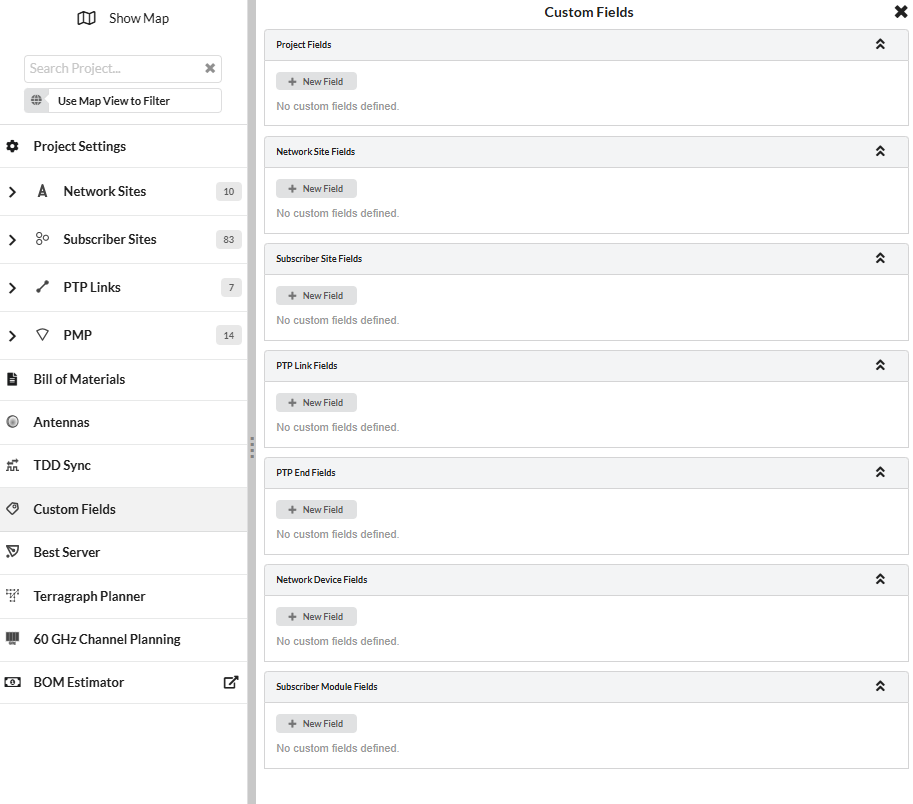
New Custom Field Options
Creating a Custom Field
To create a new custom field, click Custom Fields in the left-side menu bar, then click  under one of the options above. The Create custom field window is displayed..
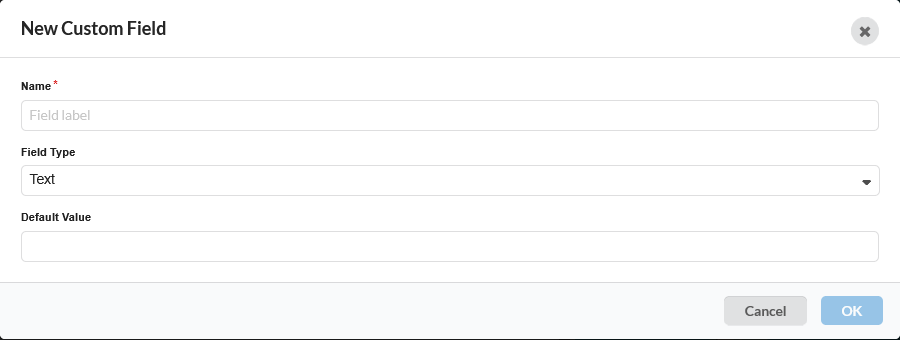
Create Custom Field
Enter a Name and then select the Field Type from the following options:
Text - Field only has one value. Enter the value for the field in the Default Value box.
Number - Field has a number value. Enter the Precision (decimal places) and the value for the field in the Default Value box. Optionally enter a Minimum Value and Maximum Value.
Choice - Field will display one value out of a list of values, see Custom Field Choice Option. Add or delete items in the choices by selecting “+” or
 , in the Choices section. Enter the option for the default value. To change from the default option for a particular location, select another option from the drop down list, see Custom Field Choice Option.
List - Field will display a list of values. Add or delete items in the list by selecting “+” or
, in the Choices section. Enter the option for the default value. To change from the default option for a particular location, select another option from the list, which will then be highlighted, see Custom Field List Option.Yes/No - Field can take the value of Yes or No. Select Yes or No as the Default Value.
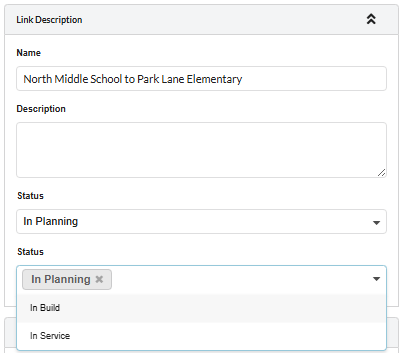
Custom Field List Option
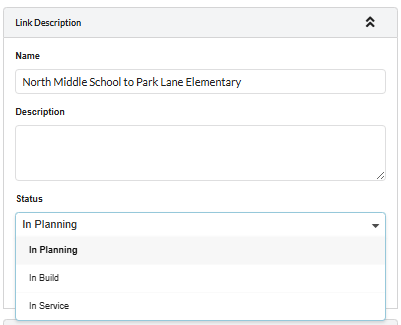
Custom Field Choice Option